
To enable the Guided Template ability in Schedules, go to the My Settings preference Guided Schedules and set it to enabled.

That will make the Guided Templates functionality visible for use in the Schedules tab of the Scheduler.
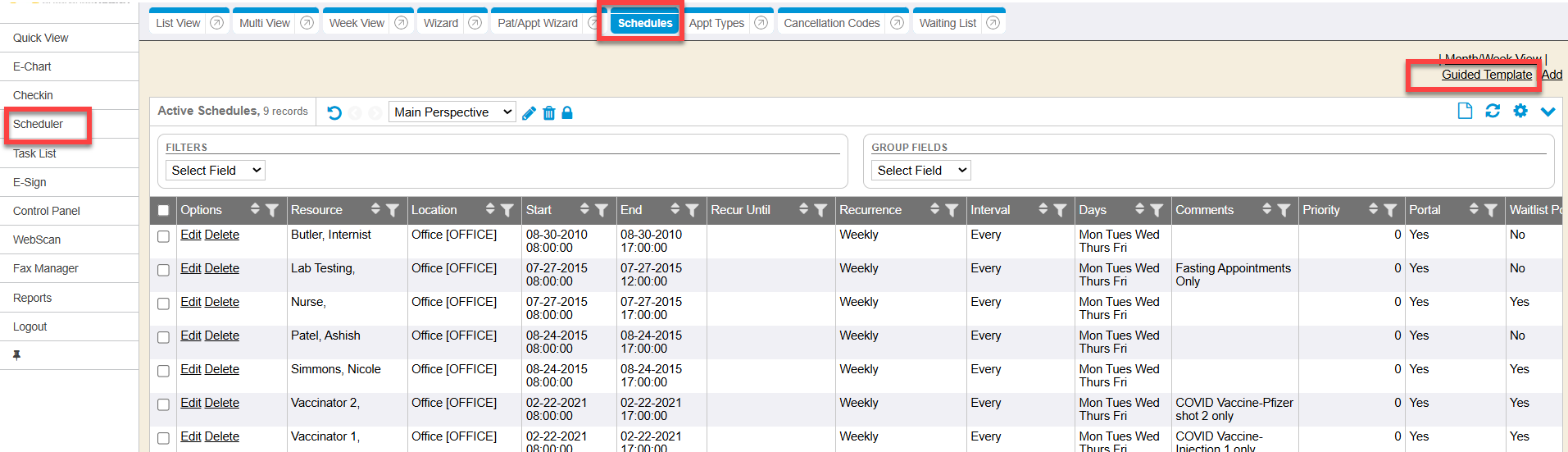
You also must have security permission to View Schedules and Edit Schedules, in order to utilize the Guided Template functionality in Schedules.

The Guided Template is a series of pop-up screens that take you through the step by step process of creating a schedule for the system. It stores the same information as the legacy Schedule Add method, but in a step by step format. The legacy Schedule Add editor is always available via the Add hyperlink in the Schedules screen. For more detailed information see Schedules Tab guide.
Guided Templates (Schedules)
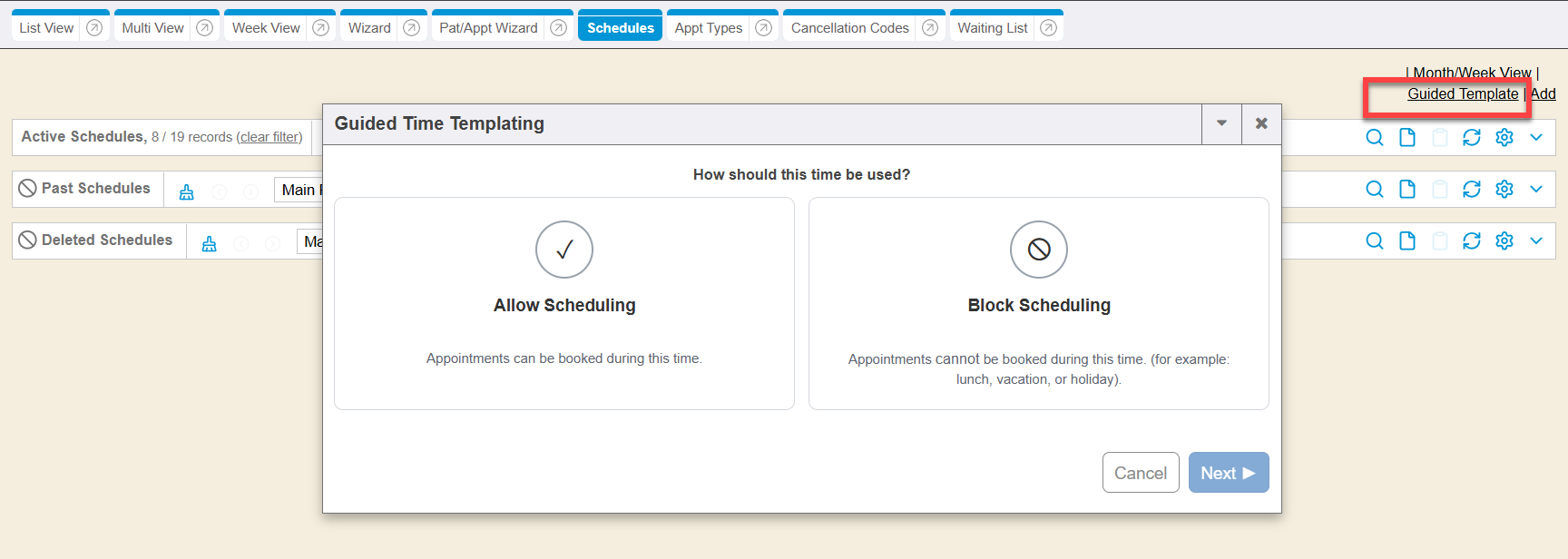
To get to the guided templates step by step ability to configure a schedule, simply click the Guided Template hyperlink available in the Schedules tab.
The Guided Template functionality (within the building of schedules) delivers a modern, streamlined guided step-by-step experience in desktop and mobile views to help guide creation of time templating (schedules).
Using this step-by-step method provides pop-up templated guide with explanations of each step, and enhanced visual cues to support faster data entry to build a schedule for the system. Existing capabilities—such as manually creating a schedule using the ‘add’ method—continue to function as they do today.
System Settings
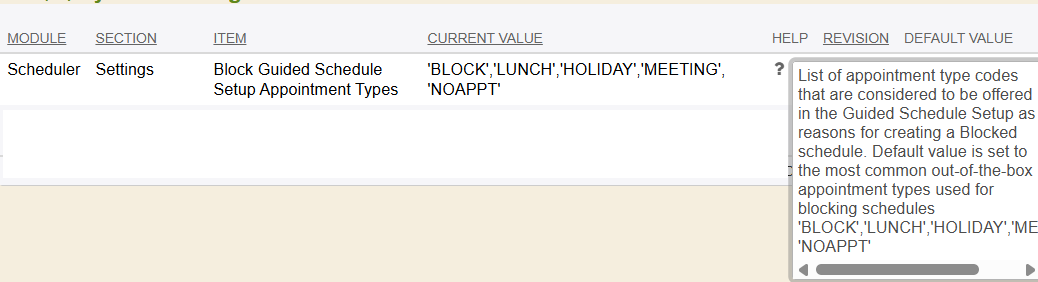
A system setting Block Guided Schedule Setup Appointment Types is available that interoperates with the Guided Template step-by-step feature. This system setting allows superadmin users to additionally configure any specific appointment types (in the system) that need to be allowed for reasons for setting up a blocked schedule. The out of the box product comes with a default set of appointment types for most common reasons to need to block a schedule (ex: for lunch block, for holidays, for meetings, etc) but this system setting allows a superadmin user to additionally configure specific appt type codes to also be allowed for blocking a schedule per system need.
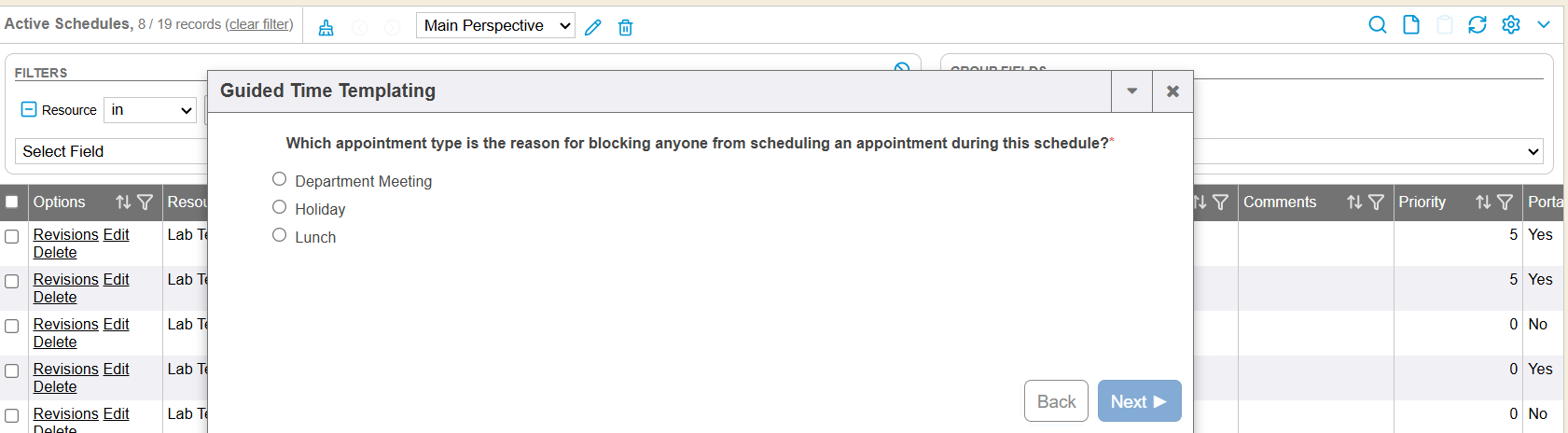
Any appointment type codes set in the system setting, will then be available for selection within the Guided Template step-by-step functionality, within the reason for needing to block appointments for a schedule being built.
Learning Management System
To learn more about Schedules follow the link below to the Learning Management System course: